Connecting Cvent to HubSpot
Login to Cvent. Click the icon in the top-right corner, then Admin. From the left-hand navigation, click Integrations, then Integration Apps. Find the HubSpot Custom app and click Set up.

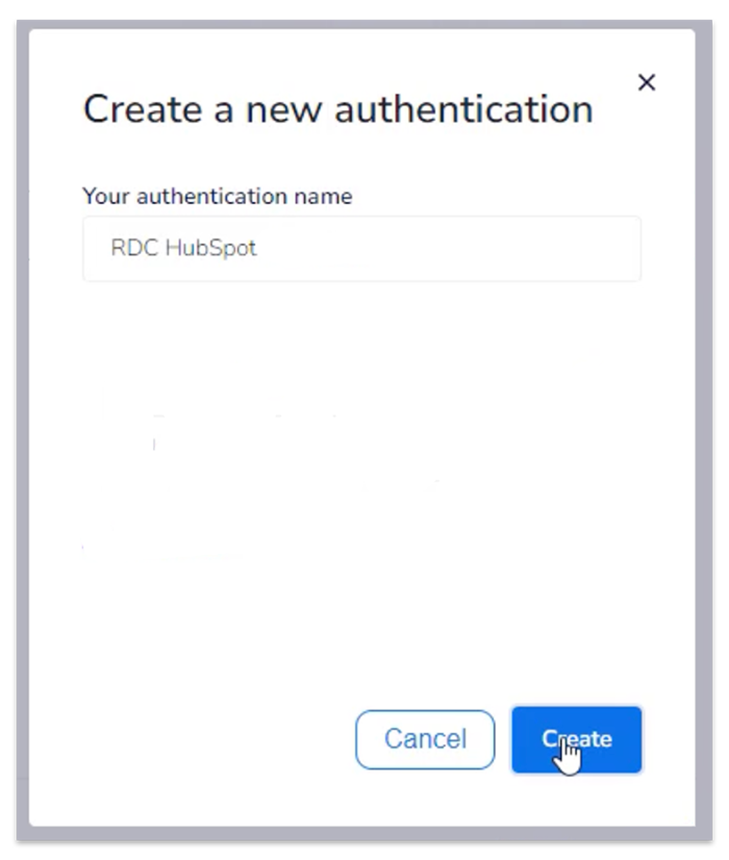
Click Add a new account and give your configuration a name. Click Create.
You’ll be prompted to log in to your HubSpot account.

Enter your HubSpot credentials and click Log In.
Pick a HubSpot account connected to your credentials and select Choose Account.

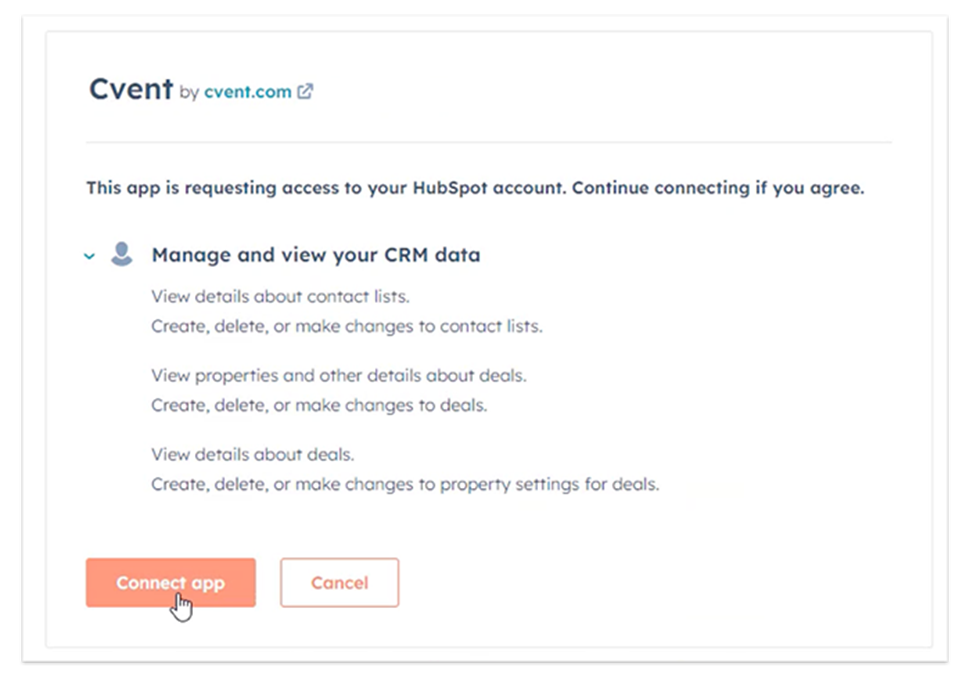
Finally, review the permissions required and click Connect app.
You'll see a confirmation that you’ve created a connection. Click Next.
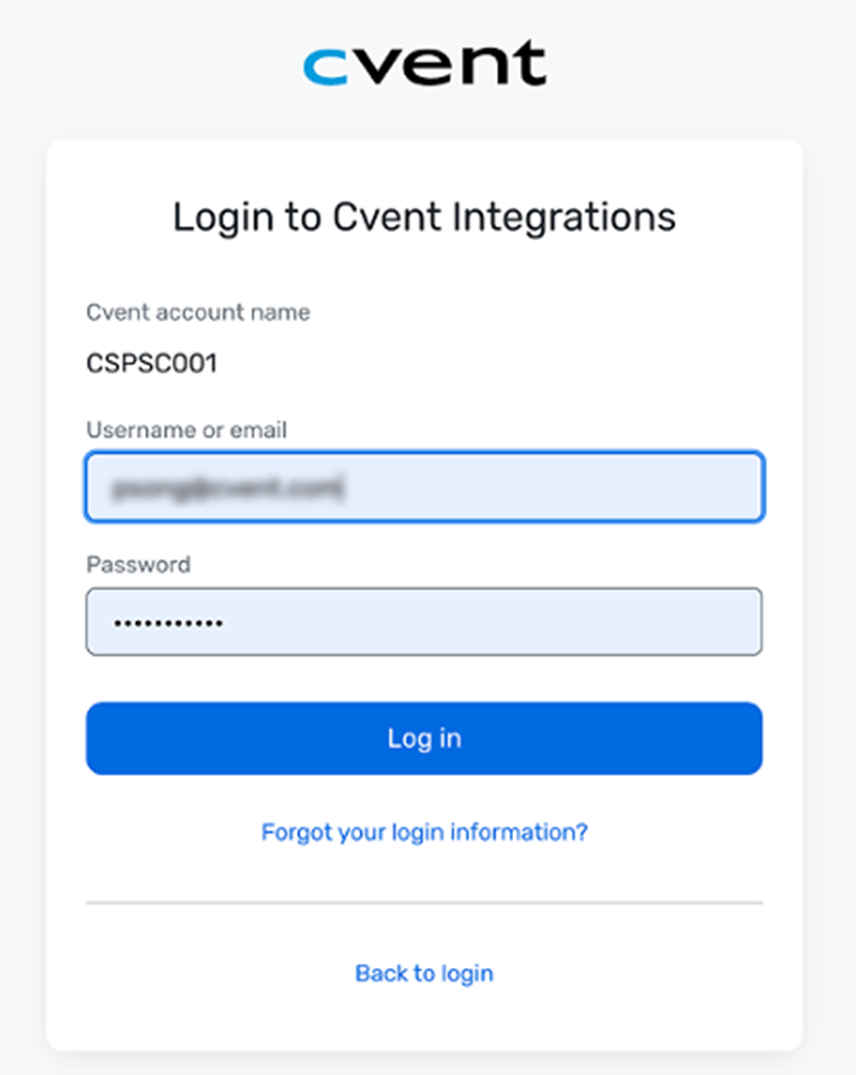
Click add a new authentication. Name it, then click Create. You will be taken to a login screen where you must input your Cvent account number, username, and password. If you have admin permissions and have Single Sign-On enabled on your account, you can sign in through SSO instead. When you’re ready, click Log In.
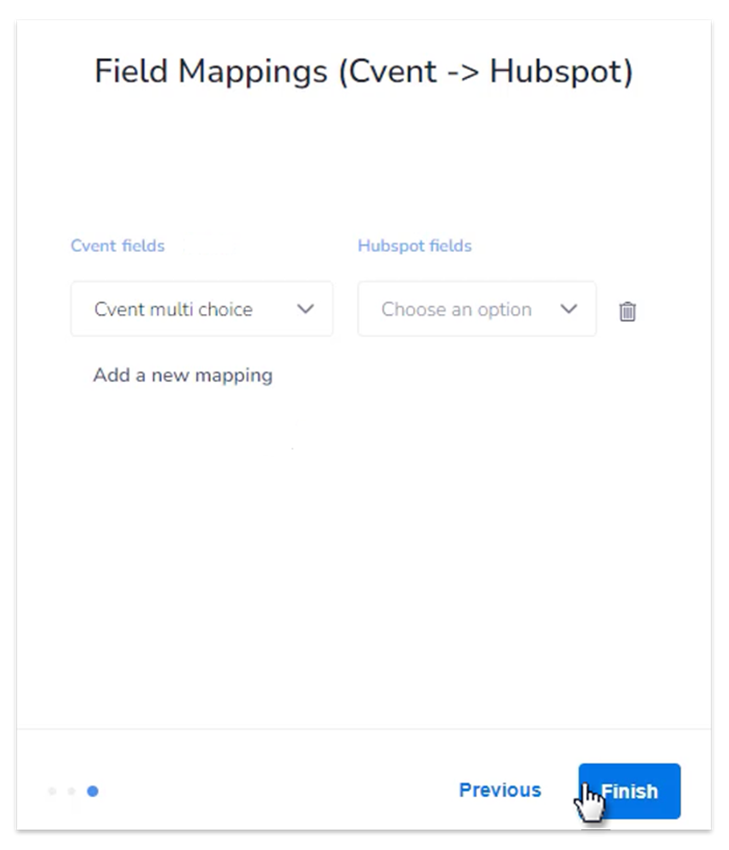
After you’ve authenticated, the last step is to map custom fields. You can map data by selecting a Cvent custom field and matching it to a HubSpot field. Make sure the data types of your HubSpot fields match with Cvent fields. Click add a new mapping to add more fields as needed.
|
NOTE: Registration and internal questions are not currently supported.
|
|
NOTE: For choice fields, please make sure the answer options present in Cvent fields match with the internal values present in HubSpot fields.
|
Once you're done, click Finish.
|
NOTE: By default, Cvent will map First Name, Last Name, Email Address, Title, and Company.
|
You’re now connected and can start using the integration.