Hi Robert,
Hope you're well!
You can try running the Session Registrant Details report, that can be configured to show each attendee, the sessions they are registered for, and the sessions they are waitlisted for - all in one view.
Here's how to set it up:
Step 1 - Run the Report
-
From your event, go to Reports → Reports and click the Report Templates tab.
-
Search for Session Registrant Details and open it.
-
Click Run the Report.
Step 2 - Configure the Data
-
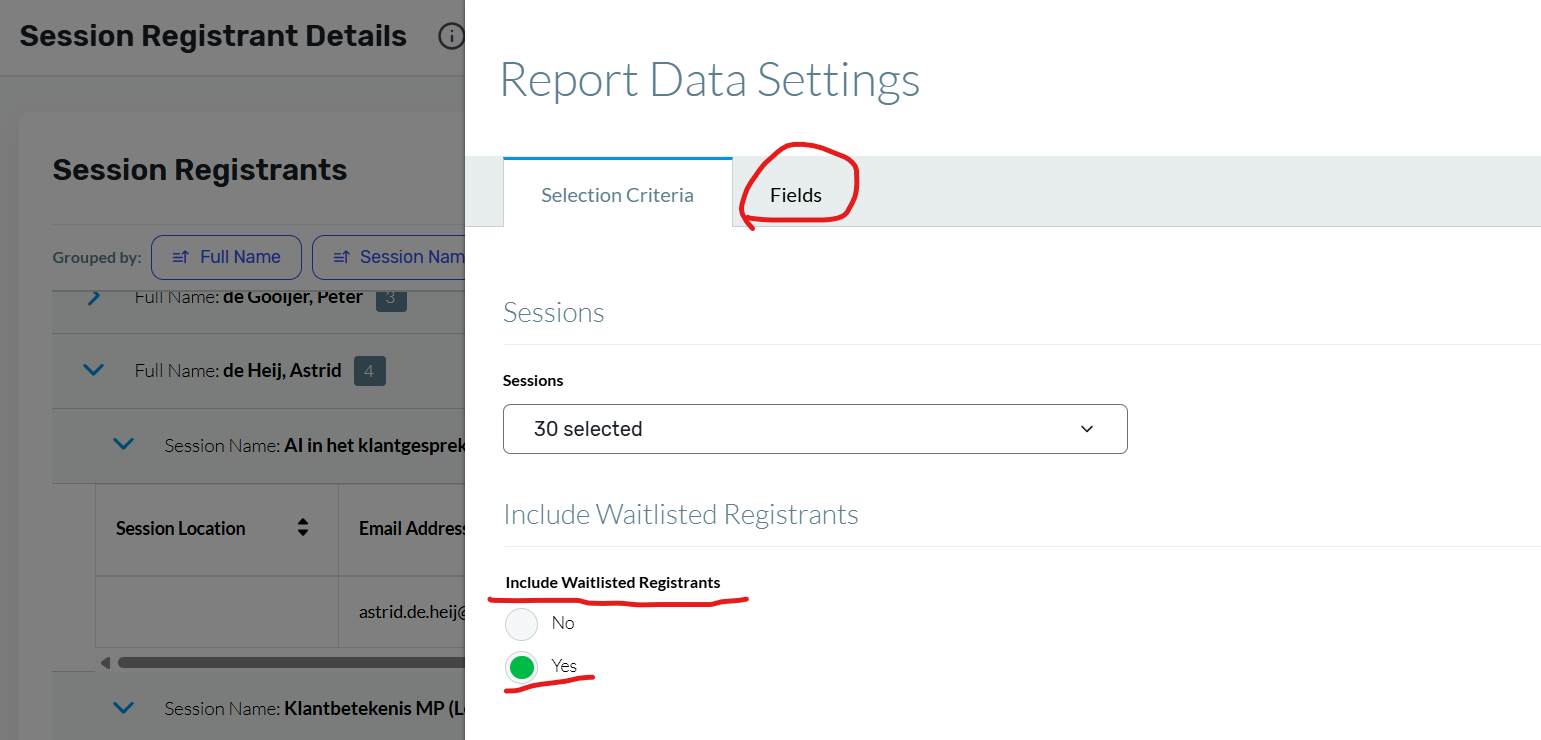
Click Data (top right) → Change Report Data.
-
Under Selection Criteria, set Include Waitlisted Registrants to Yes.
-
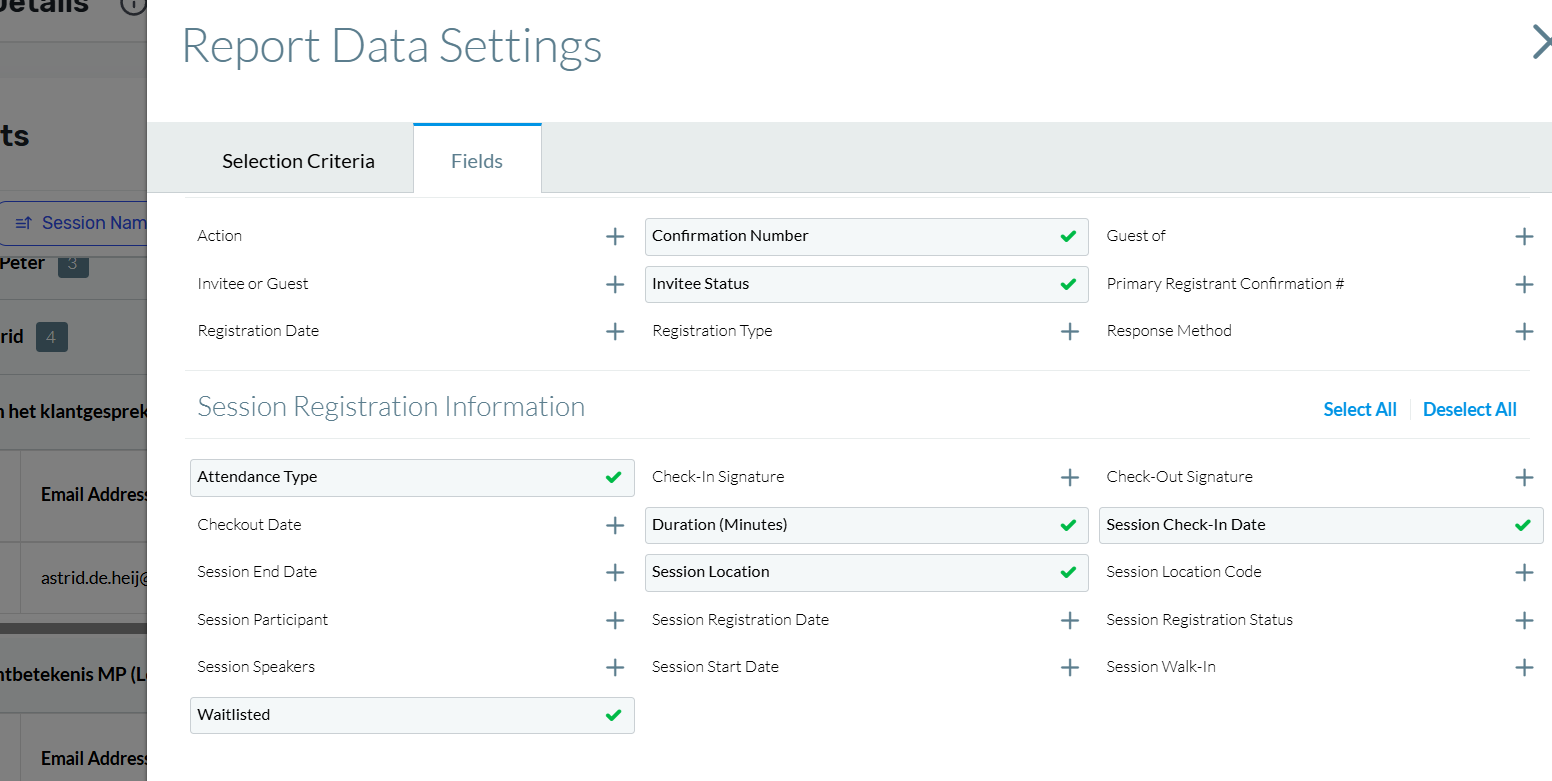
Click the Fields tab.
-
Scroll to Contact Fields → uncheck First Name and Last Name, then select Full Name.
-
Add any other attendee fields you'd like to display.
-
Scroll down to Session Registration Information → select Waitlisted.
-
Click Run.
Step 3 - Format the Report Layout
Once the data loads:
-
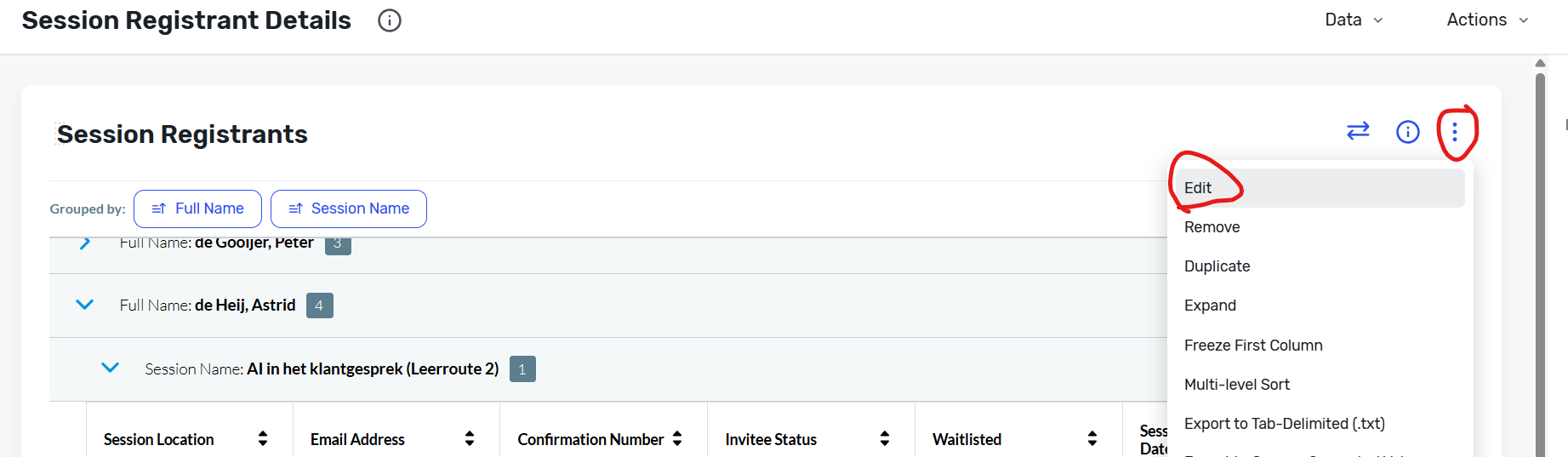
Click the three dots (top right, next to the i icon) → Edit.
-
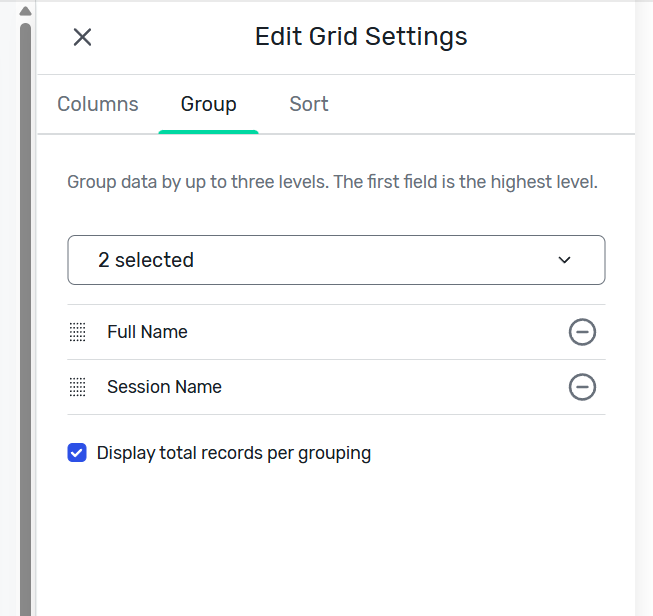
Click the Group tab → select Full Name and Session Name → click Update.
-
Click Columns and drag/drop the fields into your preferred display order → click Update.
Step 4 - Export or Save
Click Actions (top right) → Export or Save the report for future use.
The Waitlisted column will clearly flag which sessions an attendee is waitlisted for, making it easy for your event managers to see the full picture at a glance - no Excel merging required!
The report will display the data something like this :
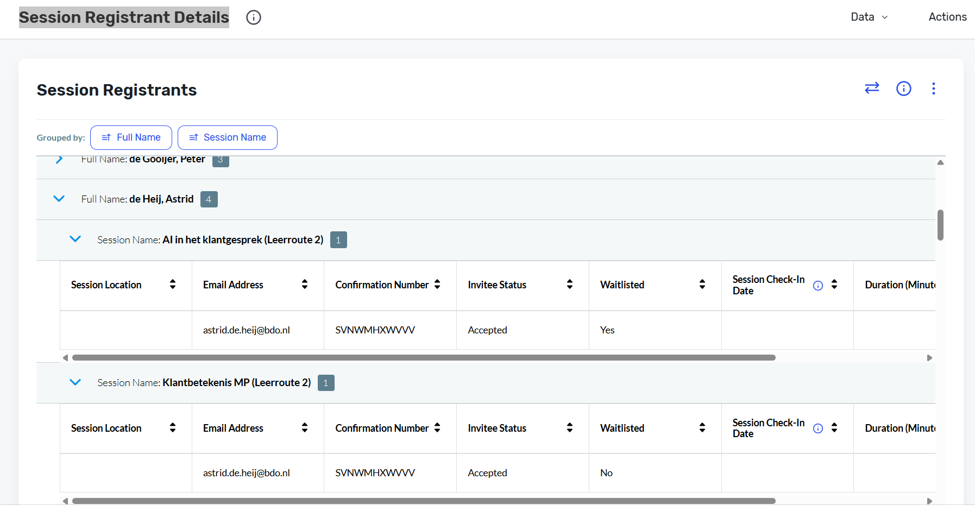
I hope this helps. Please let me know if you have any questions or run into anything while setting this up.
Have a great day ahead!
------------------------------
Raashi Semwal Khati
Quality lead - Client Services
Cvent
------------------------------